
Root Platform Test <<varKey>>
Overview varValue
Root Embed is an optional feature that allows you to add a white-labelled, self-service onboarding flow to your existing digital customer journey. You can use Embed in one of two ways:
- Embedded as an iframe into your website, user portal, or mobile app
- As a standalone website for your customers that can be accessed via a button or link on your website, user portal, mobile app, marketing email, SMS or a QR-code in your branch.
Please see the Dinosure implementation for a full example of the flow. Embed is typically implemented as a full-page iframe that contains your header and footer, but the iframe fills the body.
You can configure the look and feel of the embedded flow for each product module, making it easy to match the embed flow to your brand, and offer a seamless customer journey without writing any code. The Embed flow is configured in the file workflows > embed-config.json in your product module workbench directory.
This file has the following high-level structure:
{
  "header": { ... },
  "footer": { ... },
  "landing": { ... },
  "quote": { ... },
  "prePersonalDetailsCompliance" : { ... },
  "personalDetails": { ... },
  "application": { ... },
  "summary": { ... },
  "prePaymentCompliance": { ... },
  "payment": { ... },
  "confirmation": { ... },
  "styles" : { ... },
  "management": { ... },
  "styles": { ... },
}
Each of these sections is then broken down into further sub sections representing specific items on the page.
links- This contains any links that are required for the components.images- This is a collection of links to the required images. When including an image we recommend using S3 or Google storage for performance reasons.wording- This is where your desired copy is configured.displayOptionalSections- This is used to enable / disable various optional components of the flow, if you have included wording for an optional section that you have chosen not to display, the corresponding configurations will be ignored.
Styles
The Embed styles section is where you can configure colors and other styling options applicable to the entire Embed flow. The Embed styles are broken down into the following subsections:
colors- This is where you can configure the colors of your Embed flow. Please reference the screenshots below to see which colors are applicable where.fontSize- Here you can set the font sizes for the relevant sections. In the current implementation, these sizes are only relevant for the landing page.fontFamily- This allows you to set your desired fonts for body text and headings.borderRadius- This setting allows you to define the border radius of the buttons. This setting accepts a string representing pixels, e.g.50px.
An example is provided below:
"styles": {
    "borderRadius": {
      "button": "8px"
    },
    "colors": {
      "dark": "#00000",
      "error": "#ff2b38",
      "light": "#FFFFFF",
      "border": "rgba(0, 0, 0, 0.125)",
      "primary": "#240E8B",
      "success": "#1fc881",
      "warning": "#FC64B1",
      "disabled": "#CDD4DE",
      "highlight": "#FC64B1",
      "backgroundHighlight": "rgba(245, 247, 252, 1)"
    },
    "fontFamily": {
      "title": "Lato",
      "body": "Lato"
    },
    "fontSize": {
      "body": "16px",
      "title": "40px",
      "button": "14px",
      "subTitle": "22px",
      "subscript": "8px"
    }
  },
Header and footer
The header and footer are displayed on multiple stages of the Embed sales flow.
The header component controls two elements, namely the optional logo that can be displayed at the top of the landing page, as well as the header text which can be seen on all stages of the Embed sales flow.
The logo at the top of the landing page is optional and can be configured with the titleUrl key. To enable the logo, you will need to set displayOptionalSections.titleImage to true.
The footer component is displayed on all sections of the iframe and is used to display the underwriter’s disclaimer paired with an optional logo.
The logo is optional and can be configured with the disclaimerUrl key. To enable the logo, you will need to set displayOptionalSections.disclaimerImage to true.
An example is provided below:
{
  "header": {
    "wording": {
      "title": "Get Dinosure"
    },
    "links": {},
    "images": {
      "titleUrl": ""
    },
    "displayOptionalSections": {
      "title": true,
      "titleImage": false
    }
  },
}
Landing page
This is the entry point to the Embed sales flow. Use the landing page to inform your customers about your product and prompt them to take out cover.
The following sections of the landing page are optional and can be enabled or disabled in the config file:
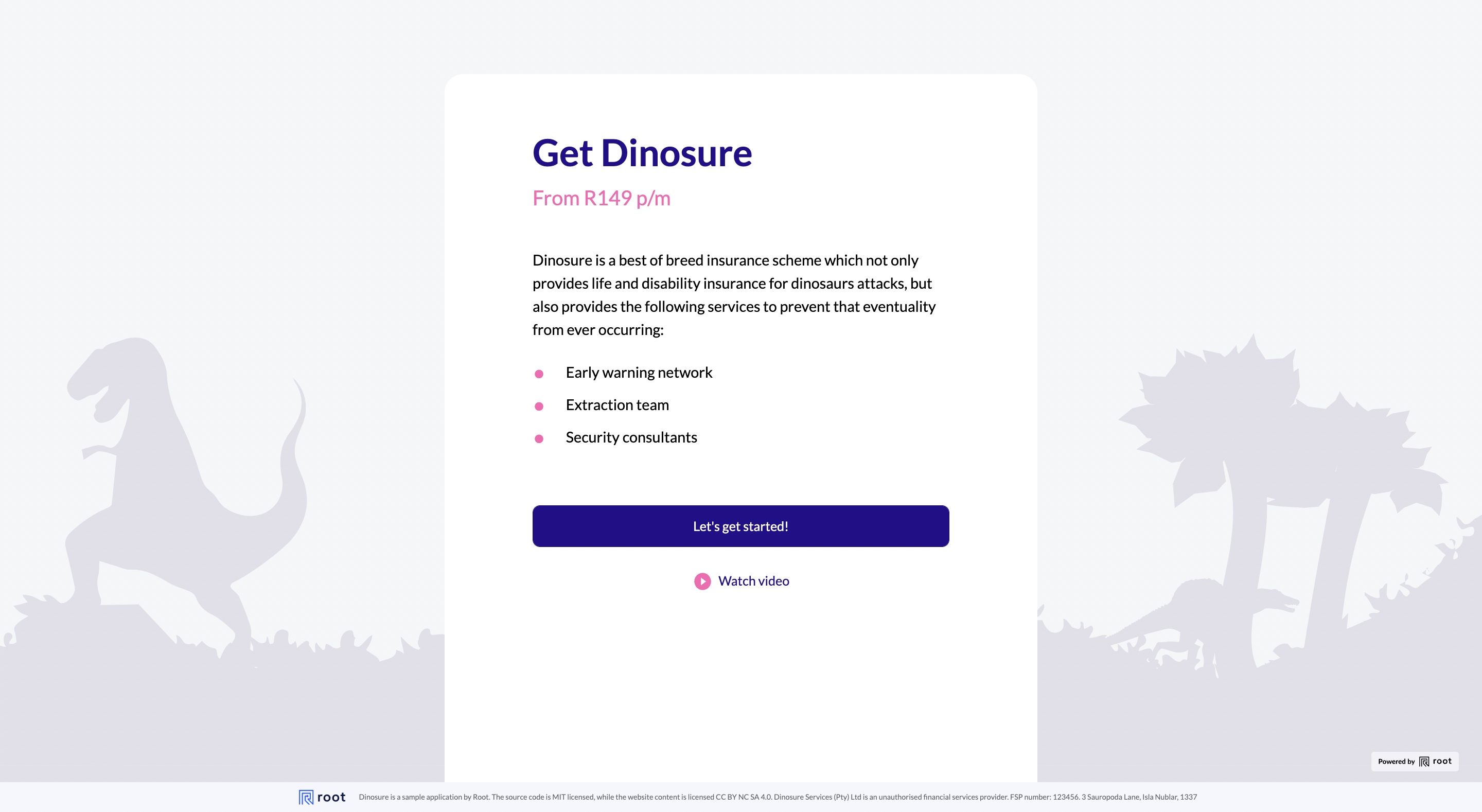
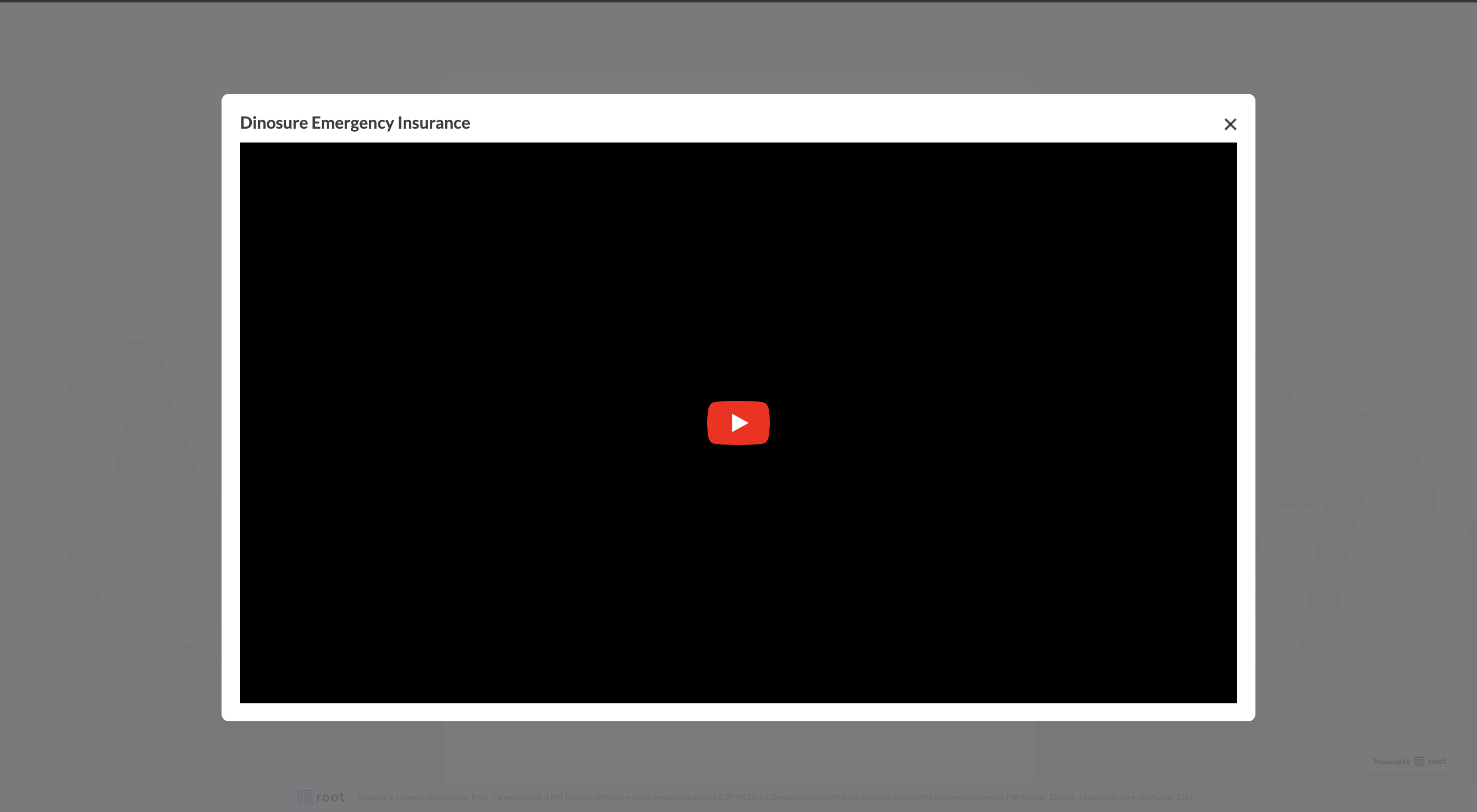
watchVideo- Enable this section if you want to add a Youtube video to the landing page. You can configure this section through the wording.videoTitle and the links.youTubeVideoId setting, where you can provide a link to a Youtube video, or a Youtube video ID.descriptionBullets- This section allows you to give a short introduction to your product. You can edit this section in thewording.descriptionBulletsoption. The value is an array of strings, each item in the array representing a bullet point.displayLandingPage- Set this to false in order to bypass the landing page
An example is provided below. Please see the screenshots, which shows which options apply to which parts of the landing page.
{
  "landing": {
    "wording": {
      "title": "Get Dinosure",
      "subTitle": "From R149 p/m",
      "description": [
        "Dinosure is a best of breed insurance scheme which not only provides life and disability insurance for dinosaurs attacks, but also provides the following services to prevent that eventuality from ever occurring:"
      ],
      "descriptionBullets": ["Early warning network", "Extraction team", "Security consultants"],
      "createQuoteButton": "Let's get started!",
      "videoTitle": "Dinosure Emergency Insurance"
    },
    "images": {
      "background": "https://storage.googleapis.com/root-production-public-client-images/Dinosure%20Demo/dinosure-grey-background.svg"
    },
    "links": {
      "youTubeVideoId": "PJlmYh27MHg"
    },
    "displayOptionalSections": {
      "displayLandingPage": true,
      "descriptionBullets": true,
      "watchVideo": true
    }
  }
}
Quote step
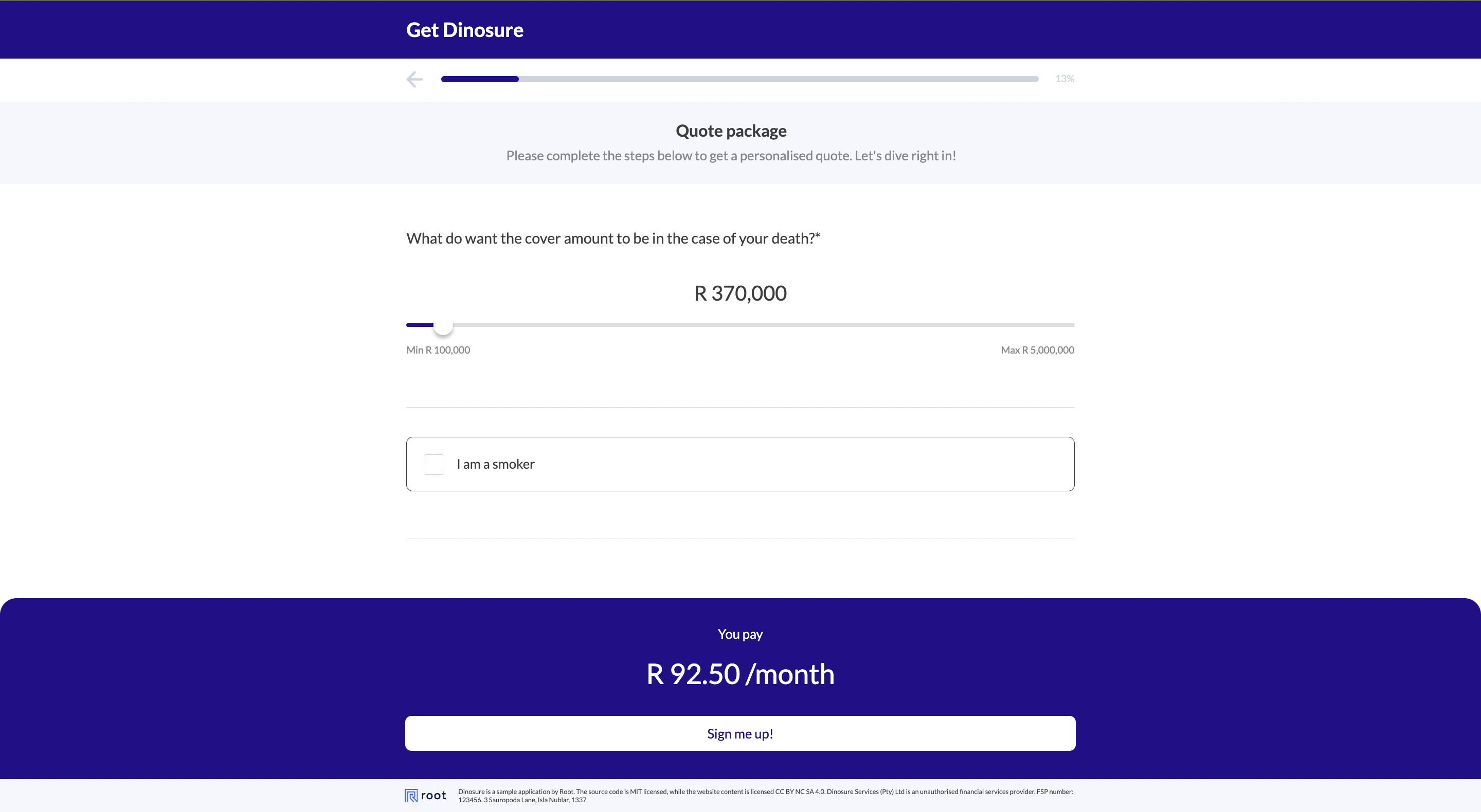
In this step the user will fill in all relevant details to receive a quote. The fields on this page are derived from the product module’s quote schema, and do not need to be configured in the configuration file. Read more about how to configure a quote schema for your product in the schemas guide.
The following sections of the landing page are optional and can be enabled or disabled in the config file.
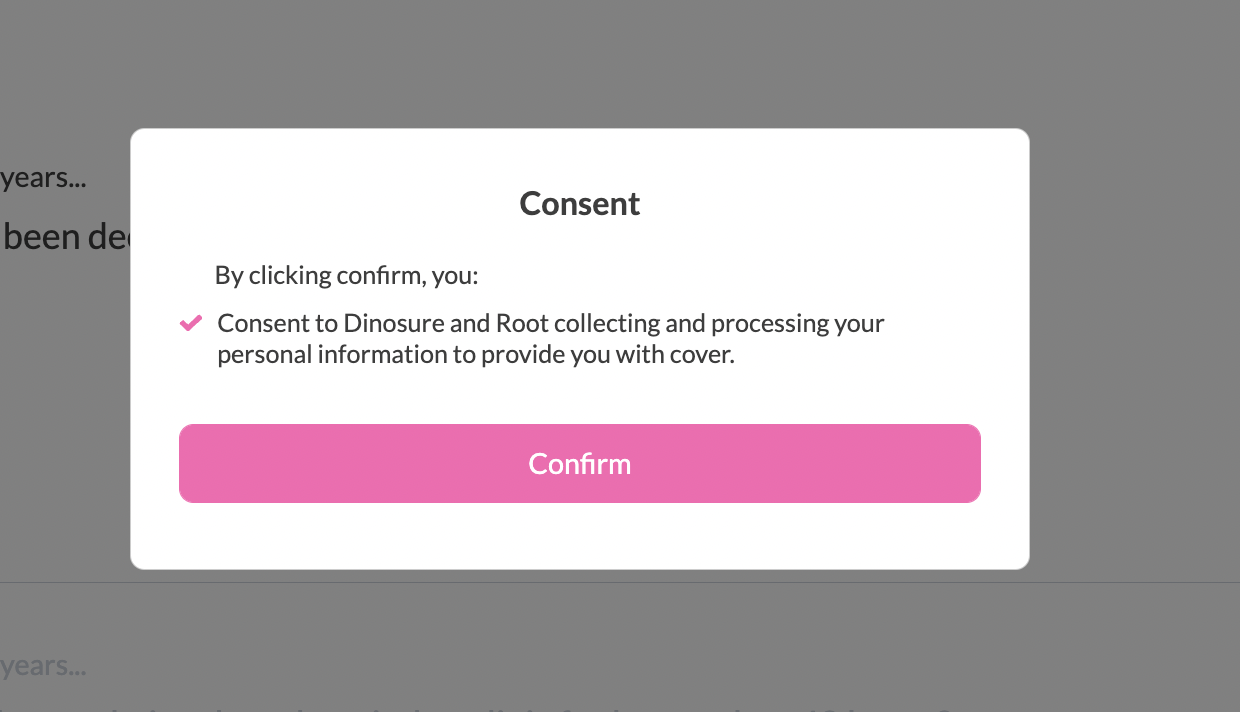
consentDisclaimer- Enable this section to display a modal to ask consent to collect information and store cookies before the user continues with the policy issuing flow. You can configure the content of the content disclaimer in the wording.consentDisclaimer object.screeningQuestions- See screening questions sectionscreeningQuestionsRetry- See screening questions section
You can make small copy and design tweaks in the configuration file, see below for me details.
{
  "quote": {
    "wording": {
      "title": "",
      "description": "Please complete the steps below to get a personalised quote. Let's dive right in!",
      "coverRejected": "life cover",
      "consentDisclaimer": {
        "consentItems": [
          "Consent to Dinosure and Root collecting and processing your personal information to provide you with cover."
        ],
        "title": "Consent"
      },
      "screeningQuestions": [
        {
          "key": "declined_cover",
          "header": "In the last 5 years...",
          "question": "Have you been declined or deferred cover by a life insurance company?"
        },
        {
          "key": "admitted_hospital",
          "header": "In the last 5 years...",
          "question": "have you been admitted to a hospital or clinic for longer than 48 hours?"
        }
      ],
      "screeningQuestionsDescription": "Before we begin, let’s make sure our term life offering is the correct cover solution for you.",
      "screeningQuestionsRejected": "Our term life offering is unfortunately not the best solution for you."
    }
  }
}

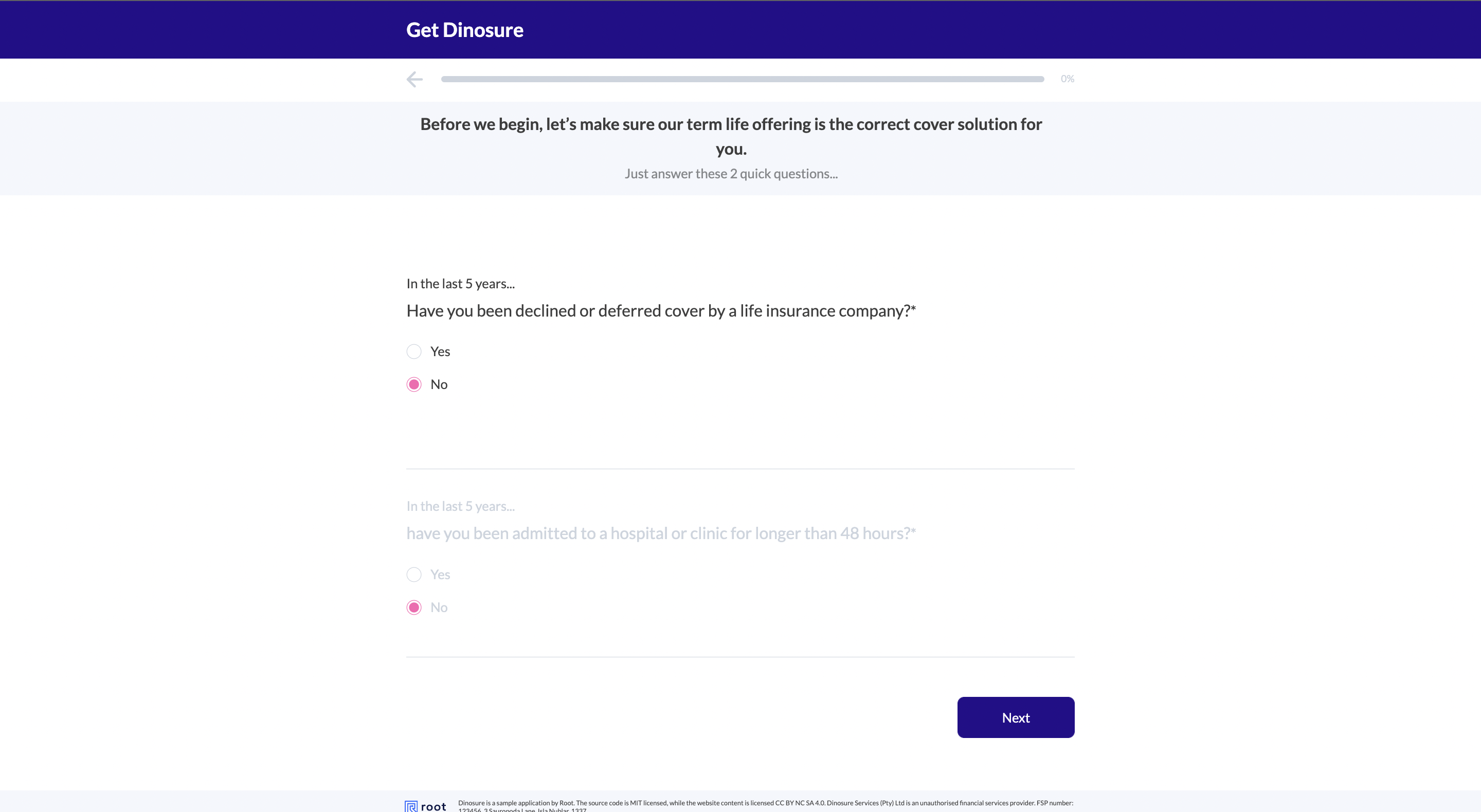
Screening questions
This is an optional section, which allows you to ask the user a series of yes or no questions. If these questions are answered with no, the user will be blocked from using the flow. You can configure whether you would like to allow the user to retry the questions with displayOptionalSections located in the quote object. By setting the flag screeningQuestionsRetry to true the user will be provided with. the option to retry the questions upon entering a no value.
You can set your screening questions in wording located in the quote object under screeningQuestions see below for an example.
You can enable the screening questions by setting displayOptionalSections.screeningQuestions located in the quote object to true, this will direct the user directly to the quote flow. Ensure that any of your screening questions are added to your validateQuoteRequest function in the product module conde.
"screeningQuestions": [
        {
          "key": "declined_cover",
          "header": "In the last 5 years...",
          "question": "Have you been declined or deferred cover by a life insurance company?"
        },
        {
          "key": "admitted_hospital",
          "header": "In the last 5 years...",
          "question": "have you been admitted to a hospital or clinic for longer than 48 hours?"
        }
      ],
Pre personal details compliance
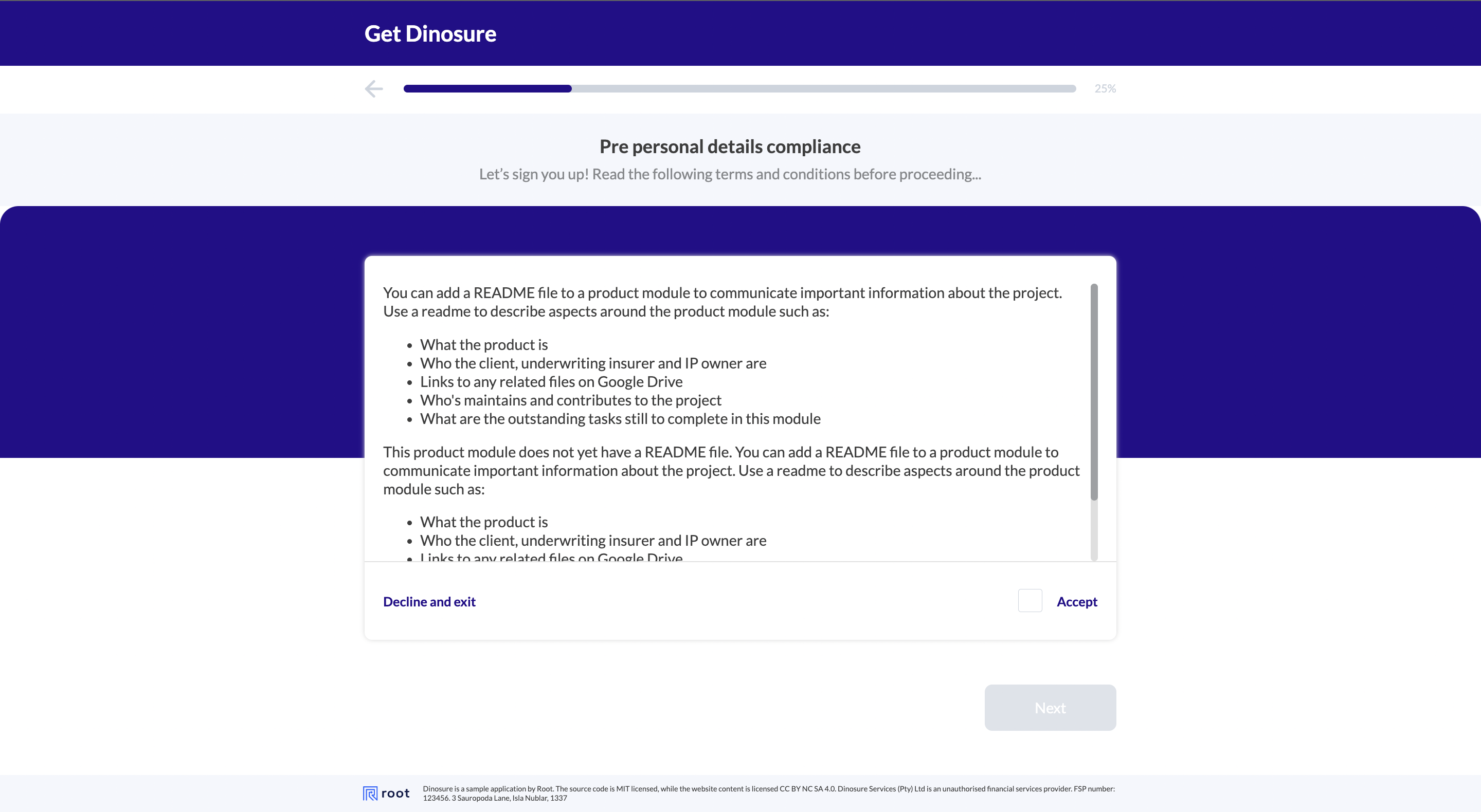
This is an optional step that allows you to add terms and conditions to the embed sales flow. This step will be displayed prior to the personal details step. The body of the terms and conditions can be configured in pre-personal-details.md located in the documents folder in workbench.
In order to enable this step you can simply set the displayPrePersonalDetailsCompliance flag to true.
{
  "prePersonalDetailsCompliance": {
    "wording": {
      "title": "Pre personal details compliance",
      "description": "Let’s sign you up! Read the following terms and conditions before proceeding..."
    },
    "images": {},
    "links": {
      "exitRedirect": "https://dinoparks.net/"
    },
    "displayOptionalSections": {
      "displayPrePersonalDetailsCompliance": true
    }
  }
}
You can add a README file to a product module to communicate important information about the project.
  Use a readme to describe aspects around the product module such as:
  - What the product is
  - Who the client, underwriting insurer and IP owner are
  - Links to any related files on Google Drive
  - Who's maintains and contributes to the project
  - What are the outstanding tasks still to complete in this module

  This product module does not yet have a README file.
  You can add a README file to a product module to communicate important information about the project.
  Use a readme to describe aspects around the product module such as:
  - What the product is
  - Who the client, underwriting insurer and IP owner are
  - Links to any related files on Google Drive
  - Who's maintains and contributes to the project
  - What are the outstanding tasks still to complete in this module
Personal details step
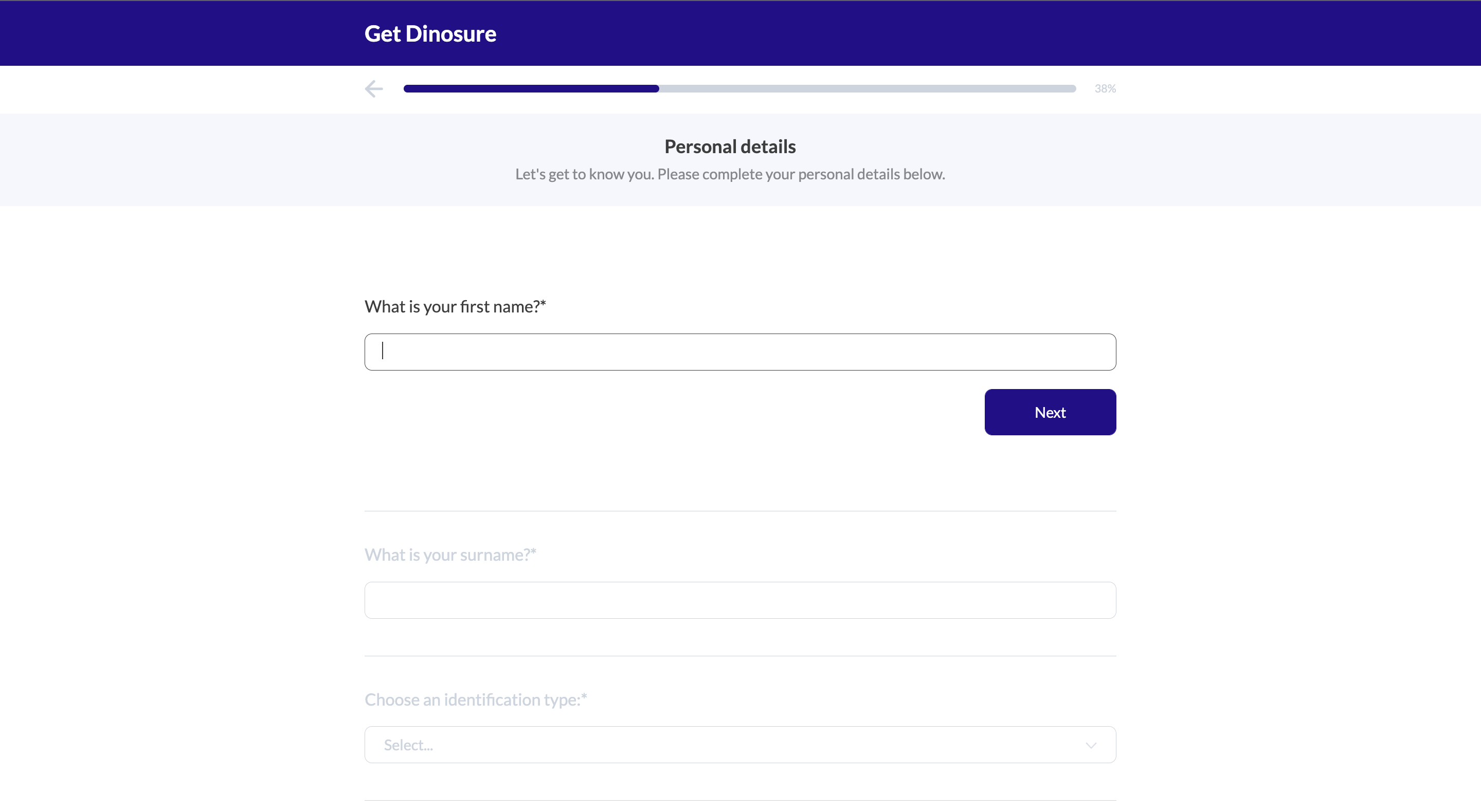
In this step the user will fill in their personal details. The fields captured in this section are standard policyholder policyholder. If multiple identification types are allowed in the product module settings, the form will allow the user to select their identification type and update dynamically.
The personal details data is required in order to issue a policy, therefore in order to skip this section you will need to provide all relevant data via prefill values as well as set skipOnPrefill to true
You can configure the description key, as well as the embed styles which affect the look and feel of the form.
{
  "personalDetails": {
    "wording": {
      "title": "Personal details",
      "description": "Let's get to know you. Please complete your personal details below."
    },
    "links": {},
    "images": {},
    "displayOptionalSections": {
      "skipOnPrefill": true
    }
  }
}
Application step
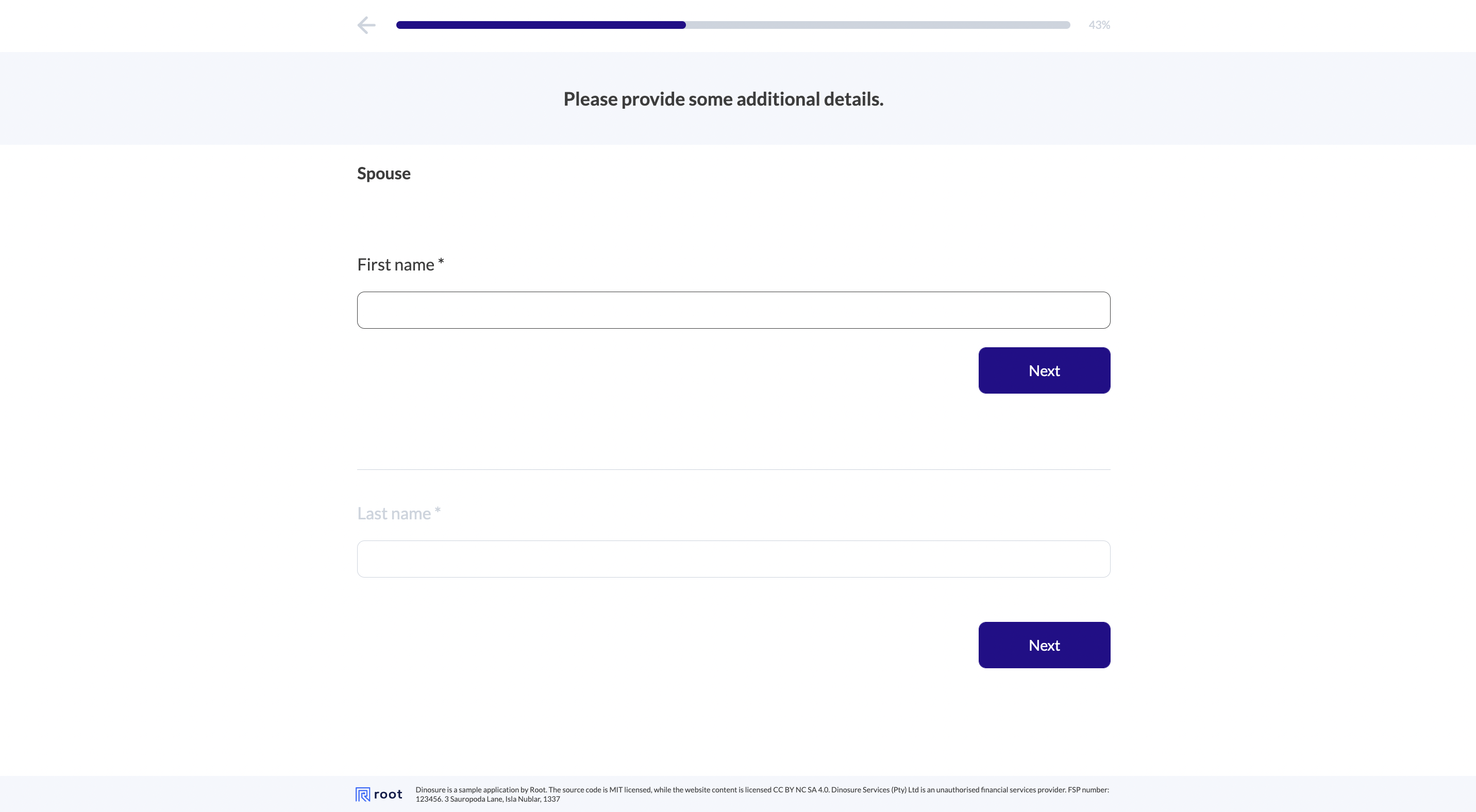
In this step, additional information can be gathered from the user. The only option that can be configured under this section is wording.description.
The input fields in this step are derived from the product module's application schema, and do not need to configured in the configuration file. This includes the ability to conditionally render fields based on the data received at the quote step. In the case where the product module does not include an application schema, this stage will be skipped in the user flow.
Read more about how to configure an application schema for your product in the schemas guide.
If you have not configured an application step this section will be skipped.
"application": {
    "wording": {
      "title": "Additional details",
      "description": "Please complete the additional details steps below."
    },
    "displayOptionalSections": {},
    "images": {},
    "links": {}
  },
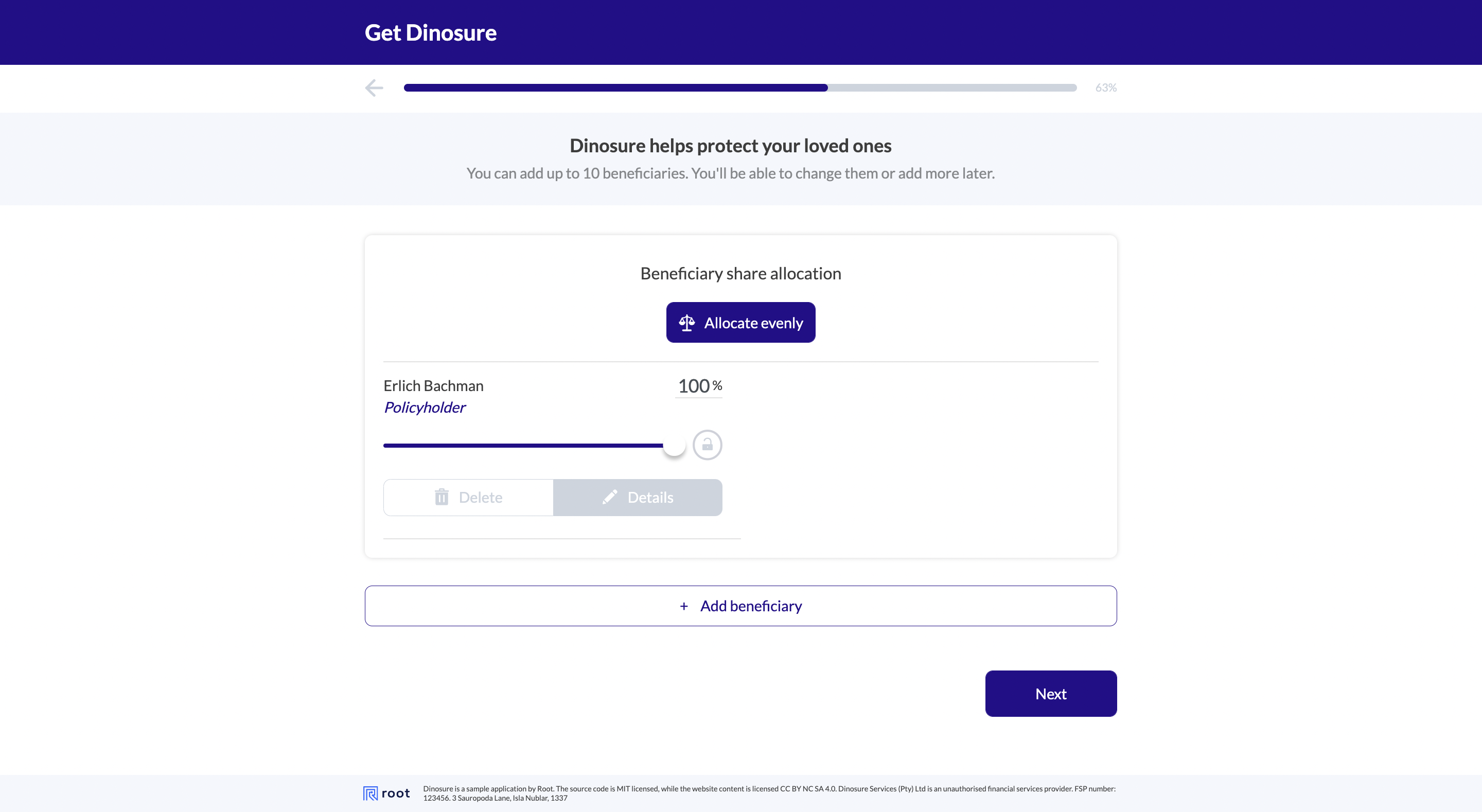
Beneficiaries step
This is an optional step, that allows a user to add beneficiaries to their policies. In your product module settings you can figure whether the policyholder is automatically added as a beneficiary to the policy.
To enable this step set the displayManageBeneficiaries flag to true.
{
  "beneficiaries": {
    "wording": {
      "title": "Dinosure helps protect your loved ones",
      "description": "Let’s list them as your beneficiaries here. You can add up to 10 beneficiaries now. You’ll be able to change them or add more later."
    },
    "images": {},
    "links": {},
    "displayOptionalSections": {
      "displayManageBeneficiaries": true
    }
  }
}
Payment step
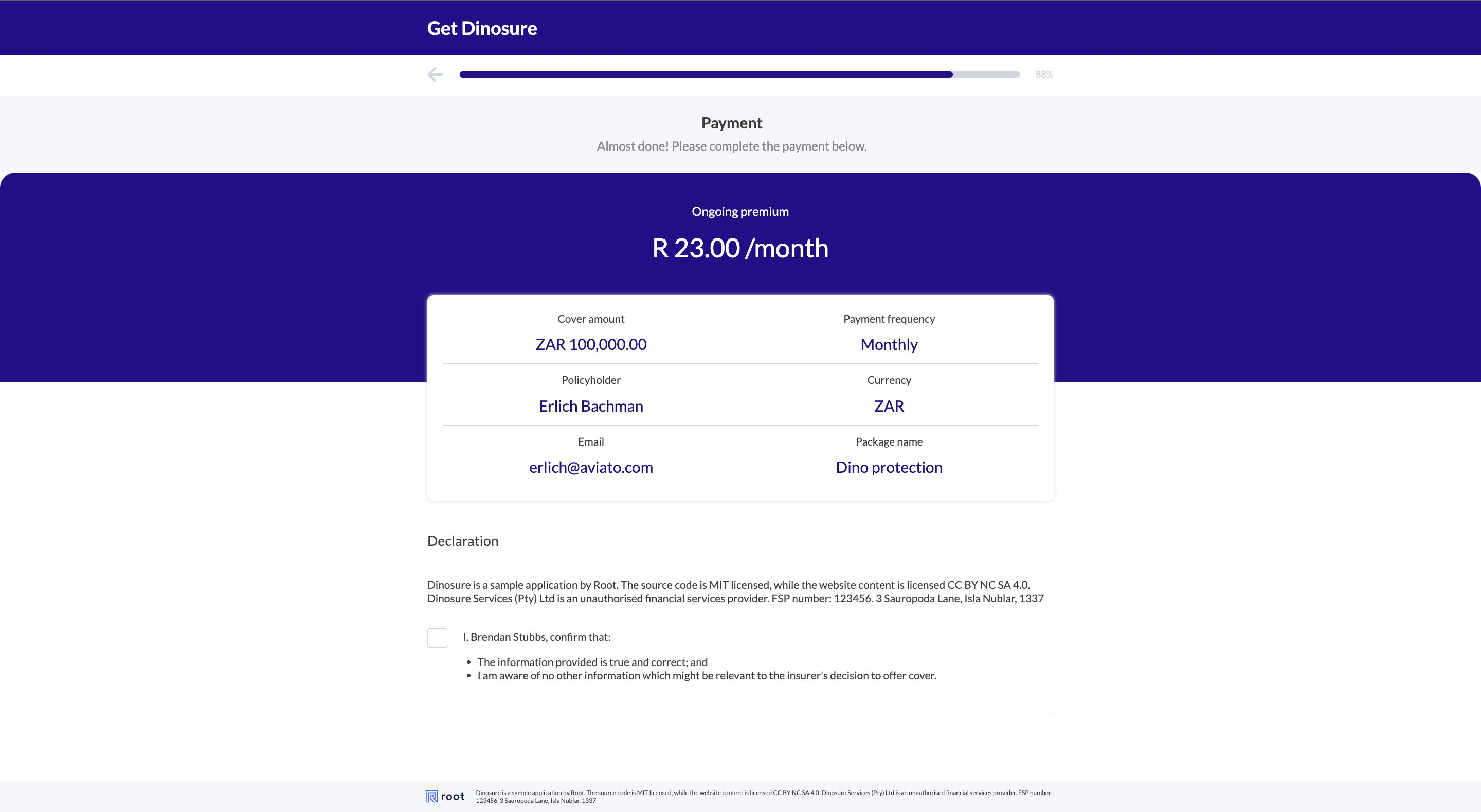
This step will display a summary of the policy details as well as capture the user's payment details.
You can configure the 6 policy detail blocks at the top of the section using handlebars in the wording.summary array.
The allowed payment method types are configurable in the product module billing settings. You can skip the capturing of payment details by setting the displayPaymentMethod to false. Note: Currently only the debit order payment method is supported by the Embed sales flow.
{
  "payment": {
    "wording": {
      "summary": [
        {
          "label": "Cover amount",
          "content": "{{formatCurrency application.sum_assured application.currency}}"
        },
        {
          "label": "Payment frequency",
          "content": "{{toStartCase application.billing_frequency}}"
        },
        {
          "label": "Policyholder",
          "content": "{{application.policyholder.first_name}} {{application.policyholder.last_name }}"
        },
        {
          "label": "Currency",
          "content": "{{application.currency}}"
        },
        {
          "label": "Email",
          "content": "{{application.policyholder.email}}"
        },
        {
          "label": "Package name",
          "content": "{{application.package_name}}"
        }
      ],
      "title": "Payment",
      "description": "Almost done! Please complete the payment below.",
      "declaration": "Dinosure is a sample application by Root. The source code is MIT licensed, while the website content is licensed CC BY NC SA 4.0. Dinosure Services (Pty) Ltd is an unauthorised financial services provider. FSP number: 123456. 3 Sauropoda Lane, Isla Nublar, 1337"
    },
    "images": {},
    "links": {},
    "displayOptionalSections": {
      "displayPaymentMethod": true
    }
  }
}
Confirmation page
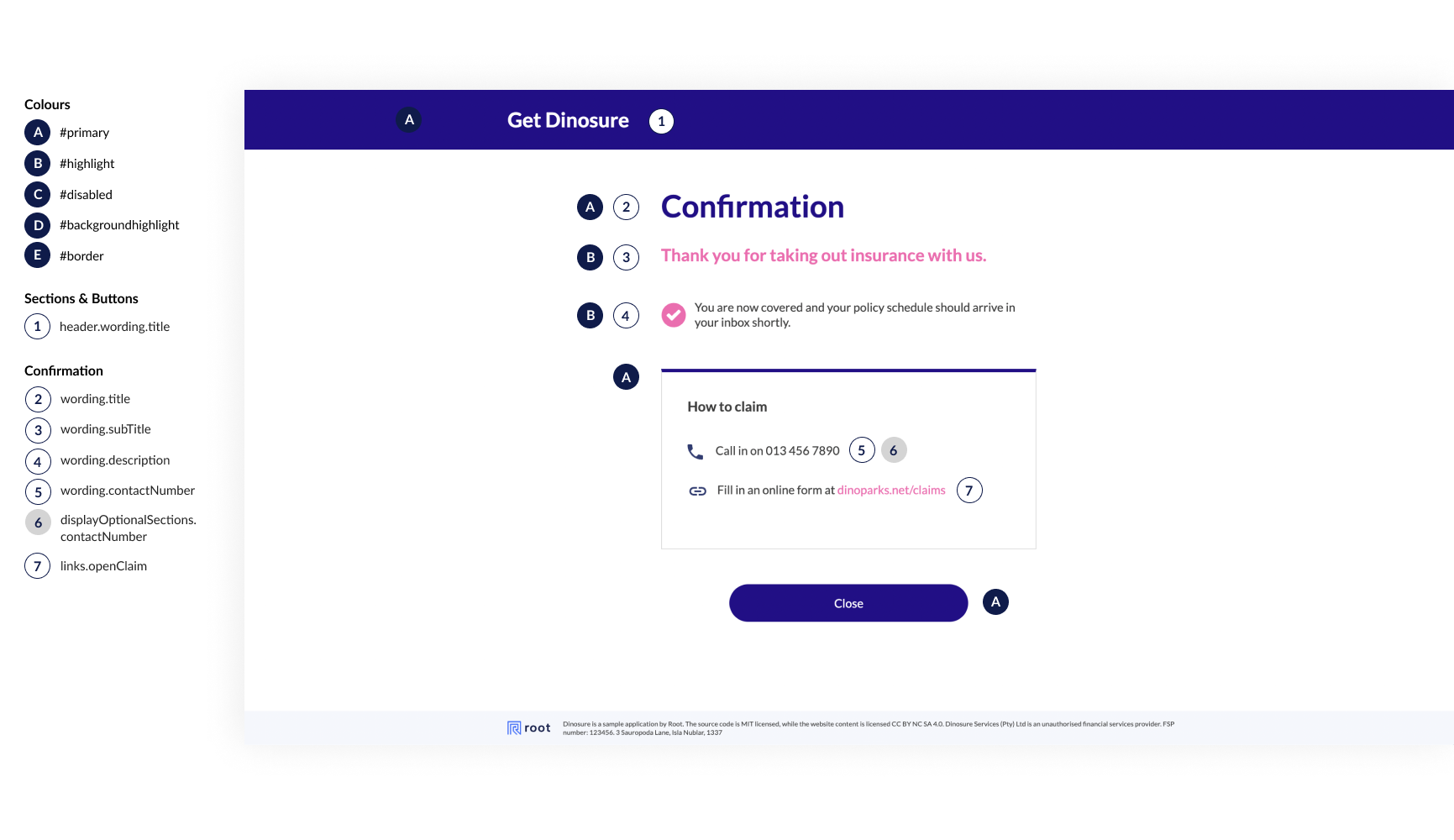
This is the final step in the Embed sales flow, informing the user that the policy has been issued. The options that can be configured are shown below:
{
  "confirmation": {
    "links": {
      "openClaim": "dinoparks.net/claims",
      "redirectOnCompletedUrl": "issue-policy"
    },
    "images": {},
    "wording": {
      "title": "Confirmation",
      "subTitle": "Thank you for taking out insurance with us.",
      "description": "You are now covered and your policy schedule should arrive in your inbox shortly.",
      "contactNumber": "013 456 7890"
    },
    "displayOptionalSections": {
      "contactNumber": true
    }
  },
 	...
}
Updated about 2 years ago